On this page I uploaded a PDF file with screenshots and explanations: https://community.amd.com/message/2861408
After Windows 10 x64 updated itself to version 1803 build 17134.48, AMD driver stoped working and my video card is not recognized by Windows. Here is how I solved it, perhaps someone else have the same problem.
- After Windows 10 x64 updated itself to version 1803 build 17134.48, AMD driver stoped working.
- My video card is Sapphire AMD Radeon R7 370 (2Gb).
- I tried to reinstall the latest AMD driver and no effect. When I try to manually start RADEON SETTINGS I get the following error message:
"The procedure entry point ?getActivationProperty@Runtime@QV4 ..."
- I go ahead for a clean reinstall. Removed all AMD software with AMDCleanupUtility.exe located on c:\AMD\Win10-64Bit-Radeon-Software-Adrenalin-Edition-18.4.1-Apr26\Bin64\AMDCleanupUtility.exe
and proceeded to CLEAN install AMD driver from the latest package: v.18.4.1.
- After installation I got the following message: Radeon Software (18.4.1) has not been installed. General error during package installation.
- I checked how my video card is seen in GPU-Z and CPU-Z and I had surprise to see is not recognized at all.
- At this point I realized is because of Windows device manager, not because AMD driver. I opened Device Manager and I see my video card is listed as “Unknown device”.
- Right-click on it > Uninstall device and then hit “Scan for hardware changes” icon. Ta-daaa, my video card appeared where it should be: AMD Radeon (TM) R7 370 Series
- At this point I reinstalled the video driver again and everything worked great. Problem solved.
2018-07-19

2018.01.21_Vivaldi browser is the true follower of Opera 12
https://forum.vivaldi.net/topic/23229/win-a-trip-to-meet-vivaldi-in-oslo/14
Vivaldi is my browser of choice since the old Opera 12 had been abandoned. I will not talk here about the many things Vivaldi is doing great, after all because of these great features I chose this browser over all the others. Instead I will talk about the ways I customized it to meet the one feature I can't live without:
Dark pages instead of white! Because white pages hurt my eyes so bad! I will never use a browser that cannot change the white background to something less offensive.
Right now, the only Chrome extension I found able to do this with a certain degree of flexibility is Stylish. On it I loaded a style called "Solarized Dark Modified Colors" that I modified once again to meet my needs.
I am well aware that the vast majority of webpages are built with a white background in mind and once this white is replaced with something dark, certain elements become hard to read, but even so, for me the dark background is essential. I believe I am not alone.
Why not integrate a feature in Vivaldi to interfere with the way the webpages are displayed? The "Themes" feature in Vivaldi is great, but why stop at the borders of the browser? What if you will implement something like Stylish, giving users the choice to set their own background color, text color, unvisited links, visited links, title and perhaps some other webpages elements colors? Then give users a quick way to switch between these Themes, in case some elements of webpages become hard to read.
Here are some screenshots of the way I prefer to see the web with Vivaldi:


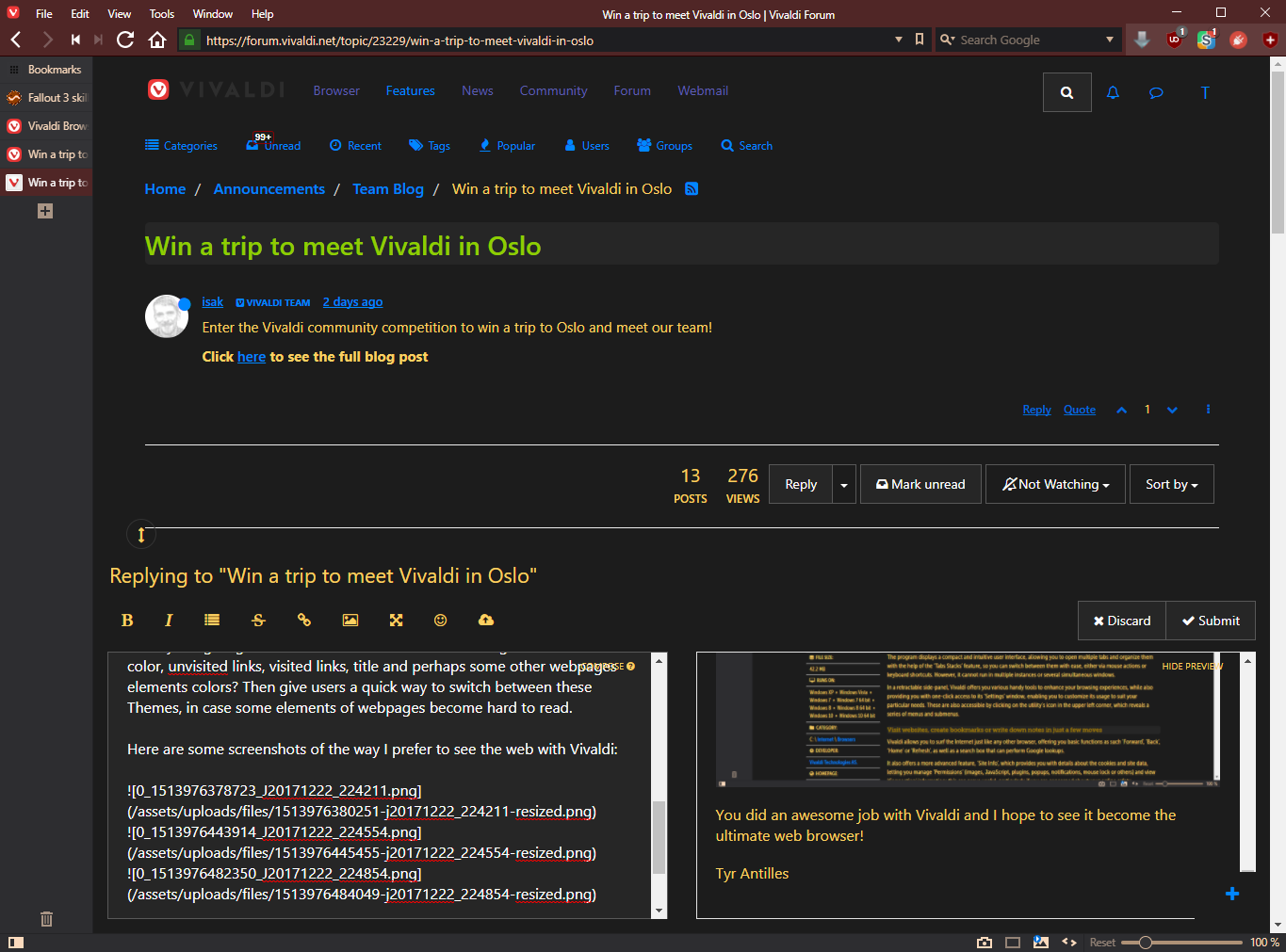
You did an awesome job with Vivaldi and I hope to see it become the ultimate web browser!
Tyr Antilles
Vivaldi is my browser of choice since the old Opera 12 had been abandoned. I will not talk here about the many things Vivaldi is doing great, after all because of these great features I chose this browser over all the others. Instead I will talk about the ways I customized it to meet the one feature I can't live without:
Dark pages instead of white! Because white pages hurt my eyes so bad! I will never use a browser that cannot change the white background to something less offensive.
Right now, the only Chrome extension I found able to do this with a certain degree of flexibility is Stylish. On it I loaded a style called "Solarized Dark Modified Colors" that I modified once again to meet my needs.
I am well aware that the vast majority of webpages are built with a white background in mind and once this white is replaced with something dark, certain elements become hard to read, but even so, for me the dark background is essential. I believe I am not alone.
Why not integrate a feature in Vivaldi to interfere with the way the webpages are displayed? The "Themes" feature in Vivaldi is great, but why stop at the borders of the browser? What if you will implement something like Stylish, giving users the choice to set their own background color, text color, unvisited links, visited links, title and perhaps some other webpages elements colors? Then give users a quick way to switch between these Themes, in case some elements of webpages become hard to read.
Here are some screenshots of the way I prefer to see the web with Vivaldi:
Tyr Antilles
2017.03.04_Ryzen Gem Mosaic Wallpaper - AMD Community
A nice Ryzen wallpaper I made myself and posted on AMD site: https://community.amd.com/message/2784265
2016.04.29_Review Microsoft Lumia 550
published on GSM Arena
https://www.gsmarena.com/microsoft_lumia_550-7612.php
https://www.gsmarena.com/microsoft_lumia_550-reviews-7612.php
I will not repeat what is already written in the accurate and well made GSMArena professional review, but I would like to add my personal experience with the phone:
- The IPS display is very clear and sharp, and the subjective image quality is very good. With the phone I bought a screen protection called Glass Pro (made of glass not plastic), on which the finger glides a lot better and is very hard to scratch.
- The speaker is loud enough, and on headphones the sound is beautiful. The sound chip used on Lumia 550 is of good quality.
- MS Lumia 550 have no possibility to read directly USB Sticks, and on the micro-USB port, cannot be connected any peripherials like mouse or keyboard or USB sticks. Is not working either with OTG cable, and the connector is a normal micro-USB, not Type C. The only solution is to connect the phone to a computer with a normal micro-USB to USB cable and then access the phone memory from the computer. Or, of course, by wireless / bluetooth / internet.
- On the browsing side, Microsoft Edge web browser looks to me a lot faster and stable then the default browser integrated on Android (I can compare only with Android 4.2.2, so, maybe on newer versions things changed). All in all, my entire online experience with Lumia 550 phone is a lot better then on my old Android platform. Basically, everything on the net, windows store, web browsing, maps, etc., runs better, smoother, faster and most important, without crashes.
- The camera is only 5 MP and is not awesome from this viewpoint, but the photos are clear, have natural colors, and the camera menu offers advanced functions like manual adjustment of many parameters that are not accessible from any Android platform. For example you can manually adjust focus, ISO 100 - 800, or activate the option to capture "living images", HDR, white balance and others. Video capture at 720p with 30 fps is of very good quality in my opinion, but my standards are not as a pro photographer.
- Programs found on Windows Store are OK, and their number increase day by day.
For example, I found a free video player called CCPlayer that is able to play my MP4 files (codec HEVC H265 with AAC audio) and with ASS subtitles placed on the same folder. The same player can play MKV files with H264 and subtitles inside MKV container. Very important, the phone have hardware acceleration for H264 AVC1 and H265 HEVC, so, the 720p movies play fluently, without any glitches.
- A big problem, not of the phone but of the OS, is that, at this time, you canÂ’t remove downloaded and uninstalled applications from MS Store > My Library. Once you install an application, it will be there forever. Even if you decide it was crap and will never be installed again, there is no way to get rid of it, rendering My Library almost useless. I hope Microsoft will solve this problem soon.
In conclusion, after more then a week of intense usage, net surfing, installation and removal of tens of programs, I realize that I like Windows 10 Mobile (Version 1511 OS build 10.0.10586.218) more then Android. Even if the phone have only 1 GB of RAM, it never run out of memory, the OS is running fluid, internet experience is better on Win10 then on Android, the phone never locked and didn't had errors, and for me, hardware acceleration for movies encoded in H265 HEVC is a real deal.
https://www.gsmarena.com/microsoft_lumia_550-7612.php
https://www.gsmarena.com/microsoft_lumia_550-reviews-7612.php
I will not repeat what is already written in the accurate and well made GSMArena professional review, but I would like to add my personal experience with the phone:
- The IPS display is very clear and sharp, and the subjective image quality is very good. With the phone I bought a screen protection called Glass Pro (made of glass not plastic), on which the finger glides a lot better and is very hard to scratch.
- The speaker is loud enough, and on headphones the sound is beautiful. The sound chip used on Lumia 550 is of good quality.
- MS Lumia 550 have no possibility to read directly USB Sticks, and on the micro-USB port, cannot be connected any peripherials like mouse or keyboard or USB sticks. Is not working either with OTG cable, and the connector is a normal micro-USB, not Type C. The only solution is to connect the phone to a computer with a normal micro-USB to USB cable and then access the phone memory from the computer. Or, of course, by wireless / bluetooth / internet.
- On the browsing side, Microsoft Edge web browser looks to me a lot faster and stable then the default browser integrated on Android (I can compare only with Android 4.2.2, so, maybe on newer versions things changed). All in all, my entire online experience with Lumia 550 phone is a lot better then on my old Android platform. Basically, everything on the net, windows store, web browsing, maps, etc., runs better, smoother, faster and most important, without crashes.
- The camera is only 5 MP and is not awesome from this viewpoint, but the photos are clear, have natural colors, and the camera menu offers advanced functions like manual adjustment of many parameters that are not accessible from any Android platform. For example you can manually adjust focus, ISO 100 - 800, or activate the option to capture "living images", HDR, white balance and others. Video capture at 720p with 30 fps is of very good quality in my opinion, but my standards are not as a pro photographer.
- Programs found on Windows Store are OK, and their number increase day by day.
For example, I found a free video player called CCPlayer that is able to play my MP4 files (codec HEVC H265 with AAC audio) and with ASS subtitles placed on the same folder. The same player can play MKV files with H264 and subtitles inside MKV container. Very important, the phone have hardware acceleration for H264 AVC1 and H265 HEVC, so, the 720p movies play fluently, without any glitches.
- A big problem, not of the phone but of the OS, is that, at this time, you canÂ’t remove downloaded and uninstalled applications from MS Store > My Library. Once you install an application, it will be there forever. Even if you decide it was crap and will never be installed again, there is no way to get rid of it, rendering My Library almost useless. I hope Microsoft will solve this problem soon.
In conclusion, after more then a week of intense usage, net surfing, installation and removal of tens of programs, I realize that I like Windows 10 Mobile (Version 1511 OS build 10.0.10586.218) more then Android. Even if the phone have only 1 GB of RAM, it never run out of memory, the OS is running fluid, internet experience is better on Win10 then on Android, the phone never locked and didn't had errors, and for me, hardware acceleration for movies encoded in H265 HEVC is a real deal.
2015-01-29
HEROES OF MIGHT AND MAGIC III: HORN OF THE ABYSS
What is Horn of the Abyss?
HotA is a global add-on for Heroes of might and magic III that extends (and fixes if needed) classical gameplay elements and adds some of its own. On a more conceptual level, HotA is an attempt to continue legendary series RoE-AB-SoD as close to the original as it could have been done by NWC team, if only they had more desire, resources or even understanding of their own game. We try to keep classical h3 spirit in every tiny detail from code nuances to overall gameplay. Be welcome to check if we’ve succeeded.
Tyr Antilles says:
HotA started as a MOD for Heroes III SoD, but ended as a full expansion of the original game. They really succeeded!
1. Heroes of Might and Magic III: The Restoration of Erathia
2. Heroes of Might and Magic III: Armageddon's Blade
3. Heroes of Might and Magic III: The Shadow of Death
4. Heroes of Might and Magic III: Horn of the Abyss
HotA HISTORY:
HotA is a mod crafted by the Russian-speaking Heroes community for Heroes of Might and Magic III: The Shadow of Death. It is the first fan mod in the history of the entire series to successfully add an all-new town, without replacing any other factions in doing so.
The mod promised three new factions would be added to H3, with a new one coming in each of the three global versions: the pirate-focused Cove town, the snowy Kronwerk/Crownwork populated by Dwarves and Giants, and the Cathedral, a dark antithesis to the Castle town led by inquisitors. In the spirit of a classic expansion pack, new heroes, artifacts, objects, terrains, spells, gameplay and features were intended for inclusion.
A sudden dispute within the HotA development team significantly crippled its progress, and for months on end it seemed certain that it would never be released. A disgruntled insider leaked a bugged beta version, which included a playable yet crash-prone first version of the Cove town, but nothing official immediately followed. However, in 2011, the team regrouped in a redoubled effort to finish version 1.0, and triumphed by the (very) end of the year in delivering the Cove, Heroes of Might and Magic III's de facto tenth town (with a small campaign).
The aim of the project is to create an add-on for Heroes of Might & Magic III SoD\Complete with lots of new features. The team is focusing on the QUALITY of all new HotA features and that means the maintenance of original game balance, and by making all new graphic materials in the original heroes style.
Requirements:
- Heroes III Complete (GOG.com version works great), or Heroes III Shadow of Death full game. You can buy it from here: http://www.gog.com/game/heroes_of_might_and_magic_3_complete_edition . Regular price is €8.49, but GOG.com sometimes offer amazing deals.
- Heroes III Horn of the Abyss (http://heroescommunity.com/viewthread.php3?TID=39830) - download installer (Current version available for download is 1.3.5 at 2015.01.28).
- Heroes III HD (https://sites.google.com/site/heroes3hd/). Latest version is HoMM3 HD 3.807f at 2015.01.28.
Installation instructions and launching game:
- Install Heroes III Complete
- Install over it Heroes III Horn of the Abyss
- Install last Heroes III HD (HD Patch must be latest version, otherwise HotA won't work)
- Launch HoMM3 HD and on Launcher window select:
- On Top-Left corner select h3hota.exe to play Horn of the Abyss, or Heroes3.exe to play Shadow of Death or Heroes 3 Complete
- Resolution: select your monitor default resolution (22 inch is 1680x1050, Full HD is 1920x1080, etc.)
- Full Screen Mode is recommended (you can anytime press F4 while in game to play in windowed mode)
Useful links:
- HotA official thread : http://heroescommunity.com/viewthread.php3?TID=39830
- HotA on Facebook : https://www.facebook.com/h3hotaofficial
- Maps : www.maps4heroes.com : http://www.maps4heroes.com/heroes3/maps.php?keywords=&type=hota&size=&difficulty=&sort=2
- Maps : heroesportal.net : http://heroesportal.net/maps.php?type=H3HA
- Heroes of Might and Magic III: Horn of the Abyss expansion (Fan Trailer) - YouTube : https://www.youtube.com/watch?v=kMYj5Am2QX8
- Horn of the Abyss 1.3.1 - Cove Town - Heroes 3 Gameplay - YouTube : http://www.google.ro/url?url=http://www.youtube.com/watch%3Fv%3D0m8GIPk20bU&rct=j&q=&esrc=s&sa=U&ei=7SDJVJjqMMv7UvX_g8AN&ved=0CEsQtwIwCg&usg=AFQjCNEZ8SUDSy-v21CmyU39uGDBOvAj-g
- Heroes of Might and Magic III: Horn of the Abyss gameplay - YouTube : http://www.google.ro/url?url=http://www.youtube.com/watch%3Fv%3D7H0Jjn2Y2z0&rct=j&q=&esrc=s&sa=U&ei=7SDJVJjqMMv7UvX_g8AN&ved=0CFAQtwIwCw&usg=AFQjCNEy2iHBmam08SCwH3_8vKQ6i4JQyQ
HotA is a global add-on for Heroes of might and magic III that extends (and fixes if needed) classical gameplay elements and adds some of its own. On a more conceptual level, HotA is an attempt to continue legendary series RoE-AB-SoD as close to the original as it could have been done by NWC team, if only they had more desire, resources or even understanding of their own game. We try to keep classical h3 spirit in every tiny detail from code nuances to overall gameplay. Be welcome to check if we’ve succeeded.
Tyr Antilles says:
HotA started as a MOD for Heroes III SoD, but ended as a full expansion of the original game. They really succeeded!
1. Heroes of Might and Magic III: The Restoration of Erathia
2. Heroes of Might and Magic III: Armageddon's Blade
3. Heroes of Might and Magic III: The Shadow of Death
4. Heroes of Might and Magic III: Horn of the Abyss
HotA HISTORY:
HotA is a mod crafted by the Russian-speaking Heroes community for Heroes of Might and Magic III: The Shadow of Death. It is the first fan mod in the history of the entire series to successfully add an all-new town, without replacing any other factions in doing so.
The mod promised three new factions would be added to H3, with a new one coming in each of the three global versions: the pirate-focused Cove town, the snowy Kronwerk/Crownwork populated by Dwarves and Giants, and the Cathedral, a dark antithesis to the Castle town led by inquisitors. In the spirit of a classic expansion pack, new heroes, artifacts, objects, terrains, spells, gameplay and features were intended for inclusion.
A sudden dispute within the HotA development team significantly crippled its progress, and for months on end it seemed certain that it would never be released. A disgruntled insider leaked a bugged beta version, which included a playable yet crash-prone first version of the Cove town, but nothing official immediately followed. However, in 2011, the team regrouped in a redoubled effort to finish version 1.0, and triumphed by the (very) end of the year in delivering the Cove, Heroes of Might and Magic III's de facto tenth town (with a small campaign).
The aim of the project is to create an add-on for Heroes of Might & Magic III SoD\Complete with lots of new features. The team is focusing on the QUALITY of all new HotA features and that means the maintenance of original game balance, and by making all new graphic materials in the original heroes style.
Requirements:
- Heroes III Complete (GOG.com version works great), or Heroes III Shadow of Death full game. You can buy it from here: http://www.gog.com/game/heroes_of_might_and_magic_3_complete_edition . Regular price is €8.49, but GOG.com sometimes offer amazing deals.
- Heroes III Horn of the Abyss (http://heroescommunity.com/viewthread.php3?TID=39830) - download installer (Current version available for download is 1.3.5 at 2015.01.28).
- Heroes III HD (https://sites.google.com/site/heroes3hd/). Latest version is HoMM3 HD 3.807f at 2015.01.28.
Installation instructions and launching game:
- Install Heroes III Complete
- Install over it Heroes III Horn of the Abyss
- Install last Heroes III HD (HD Patch must be latest version, otherwise HotA won't work)
- Launch HoMM3 HD and on Launcher window select:
- On Top-Left corner select h3hota.exe to play Horn of the Abyss, or Heroes3.exe to play Shadow of Death or Heroes 3 Complete
- Resolution: select your monitor default resolution (22 inch is 1680x1050, Full HD is 1920x1080, etc.)
- Full Screen Mode is recommended (you can anytime press F4 while in game to play in windowed mode)
Useful links:
- HotA official thread : http://heroescommunity.com/viewthread.php3?TID=39830
- HotA on Facebook : https://www.facebook.com/h3hotaofficial
- Maps : www.maps4heroes.com : http://www.maps4heroes.com/heroes3/maps.php?keywords=&type=hota&size=&difficulty=&sort=2
- Maps : heroesportal.net : http://heroesportal.net/maps.php?type=H3HA
- Heroes of Might and Magic III: Horn of the Abyss expansion (Fan Trailer) - YouTube : https://www.youtube.com/watch?v=kMYj5Am2QX8
- Horn of the Abyss 1.3.1 - Cove Town - Heroes 3 Gameplay - YouTube : http://www.google.ro/url?url=http://www.youtube.com/watch%3Fv%3D0m8GIPk20bU&rct=j&q=&esrc=s&sa=U&ei=7SDJVJjqMMv7UvX_g8AN&ved=0CEsQtwIwCg&usg=AFQjCNEZ8SUDSy-v21CmyU39uGDBOvAj-g
- Heroes of Might and Magic III: Horn of the Abyss gameplay - YouTube : http://www.google.ro/url?url=http://www.youtube.com/watch%3Fv%3D7H0Jjn2Y2z0&rct=j&q=&esrc=s&sa=U&ei=7SDJVJjqMMv7UvX_g8AN&ved=0CFAQtwIwCw&usg=AFQjCNEy2iHBmam08SCwH3_8vKQ6i4JQyQ
2010-08-18
Make work ANY device on Windows 7 x64 or Vista using your old Windows XP drivers
- Your Windows 7 x64 computer
- Oracle VM VirtualBox Free Edition (latest version at this time is 3.2.8 r64453)
- Windows XP x32 which will be installed on VirtualBox as guest
Example how to install a total obscure camera called Aiptek Smart MegaCam which have drivers only for Windows XP x32 (all of this is made on a Windows 7 x64 host computer and a Windows XP x32 guest OS on VM VirtualBOX).
- to install on VM VirtualBOX the Aiptek Smart MegaCam under Win7 x64 do these steps:
- Go to Oracle VM VirtualBox, install Windows XP on a new machine and ensure is working, install camera drivers and proprietary program on it (you can do that after you connect camera too and windows XP will ask for drivers).
- Connect your camera on your computer and activate it from machine menu: Devices > USB Devices > "Unknown device 04FC:504B [0100]".
--------------------------------------------
[The next complicate procedure is necessarily only if your device is not automatically recognized by the guest OS as soon as you plug it in and activating it from machine menu: Devices > USB Devices > "click your device you want to install on guest"]
- Have your guest OS shut down.
- Connect camera to computer. The cam will power on and Win7 on host computer will say you have no drivers.
- Go to machine settings on Oracle VM VirtualBox and from USB section click "Add filter from device" and from the list with USB devices available on HOST choose camera - Aiptek Cam was listed as "Unknown device 04FC:504B [0100]". This will make this device available only for Guest OS, basically the listed USB port will be directed only on Guest.
- Power on the Guest. (Here I had a small problem with my camera turning off as soon as the guest booted. I overcome this by disconnecting cable and quickly connecting it back before guest OS could boot). When Windows XP starts it detects a new device and install the 32 bit driver for it. If you didn't do this before you can install drivers now. After restart the cam is recognized by the guest as soon I plug in the cable (with guest already running).
----------------------------------------------
SHARED FOLDERS (to communicate between Host and Guest)
- For shared folders to work (share a folder on your HDD with Guest OS), you need to go to machine settings on Oracle VM VirtualBox and from "Shared Folders" select the folder on your host you want to be accessible from guest. Then power on the machine and from top menu install GUEST ADDITIONS. Now to reach the shared folder browse on the host to: "My Network Places > Entire Network > VirtualBox Shared Folders > \\Vboxsvr > \\VBOXSVR\
*********************************
VIRTUAL MACHINE PARAMETERS



Subscribe to:
Posts (Atom)